← Work / 04

Designing a robot companion that keeps remote workers productive and accountable

UX researchUX/UI designPrototypingHardware concept
↺ Rewind

Every Remotobot ships from the factory.

Here's how this one was built, Sept – Dec 2022.
01Intake
Station 01 · Intake

Overview

With the shift in many companies towards remote work, keeping employees focused and productive while on the job is crucial. By understanding the needs of remote workers and the factors that play a role in remote work, we set out to design a product or service to boost productivity, so that everyone has the opportunity to do the best work that they can.

Build order Design question

“How can we improve productivity for remote workers in their 20s who are living alone?”

02Sensors
Station 02 · Input sensors

Research

To answer that question properly we needed a deep understanding of our target audience, so we combined three methods: diary studies, interviews and surveys.

Sensor 02-A

Diary studies

Participants documented their activities, thoughts and feelings through the day in a digital diary. Reviewing the entries showed how our audience spends their time, what they complete daily, and where the common pain points sit.
Reads
Activities, thoughts and feelings through the day
Sensor 02-B

Interviews

Semi-structured interviews with remote workers in their 20s who live alone, including software engineers, covering their work routines, the tools they use to stay productive, and how they keep themselves motivated at home.

Reads
Routines, tools and motivation at home
Sensor 02-C

Survey

A wider sample gave us quantitative data on productivity habits: the tools and resources they use, their current productivity levels, and their preferences for communication and collaboration.

Reads
Habits, tools, productivity levels, preferences

All three pointed at the same pain points: difficulty staying motivated, feeling isolated and disconnected, and difficulty managing distractions.

Making sense of the data

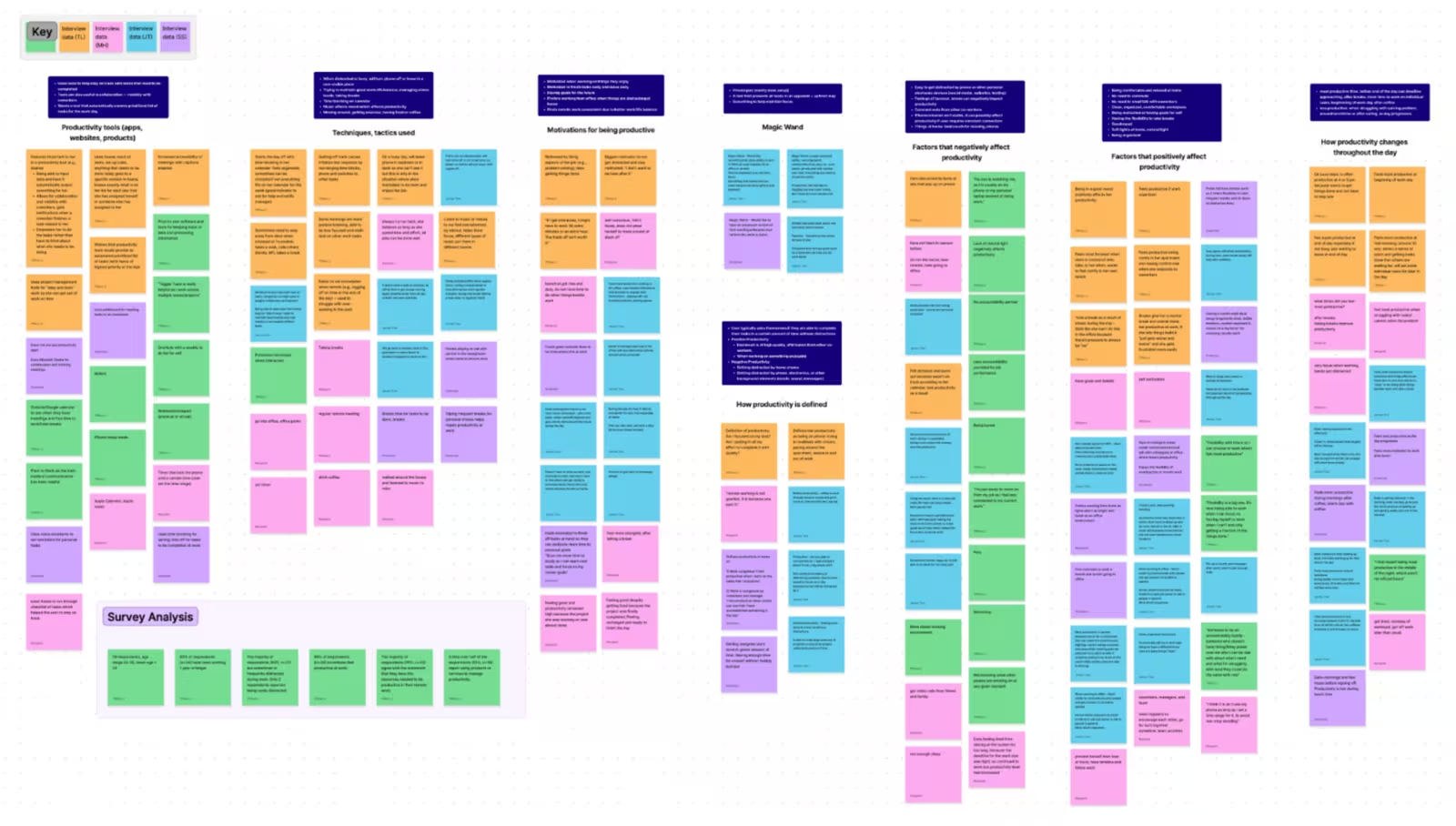
We gathered the qualitative data and analysed it for themes and patterns. An affinity diagram made the commonalities across the three methods visible.

Calibration bench · Affinity diagramAffinity diagram of several hundred coloured sticky notes grouped into themed columns, including how productivity is defined and factors that positively or negatively affect productivity

Affinity diagram of the qualitative data gathered, clustered into themes such as how productivity is defined and what helps or hurts it.

03Calibration
Station 03 · Calibration

Key findings

From our user research, we identified four major findings.

Signal
Readout 03.1

Productivity means progress

People define productivity as how much progress they make within a set amount of time.

Signal
Readout 03.2

Goals create motivation

Having goals gives people a reason to be productive.

Signal
Readout 03.3

Enjoyment lifts output

Enjoyment can indirectly increase productivity by improving mood.

Signal
Readout 03.4

Phones are the common distractor

Phones are a common distractor that prevents people from being optimally productive.

04Fit check
Station 04 · Fit check

Personas

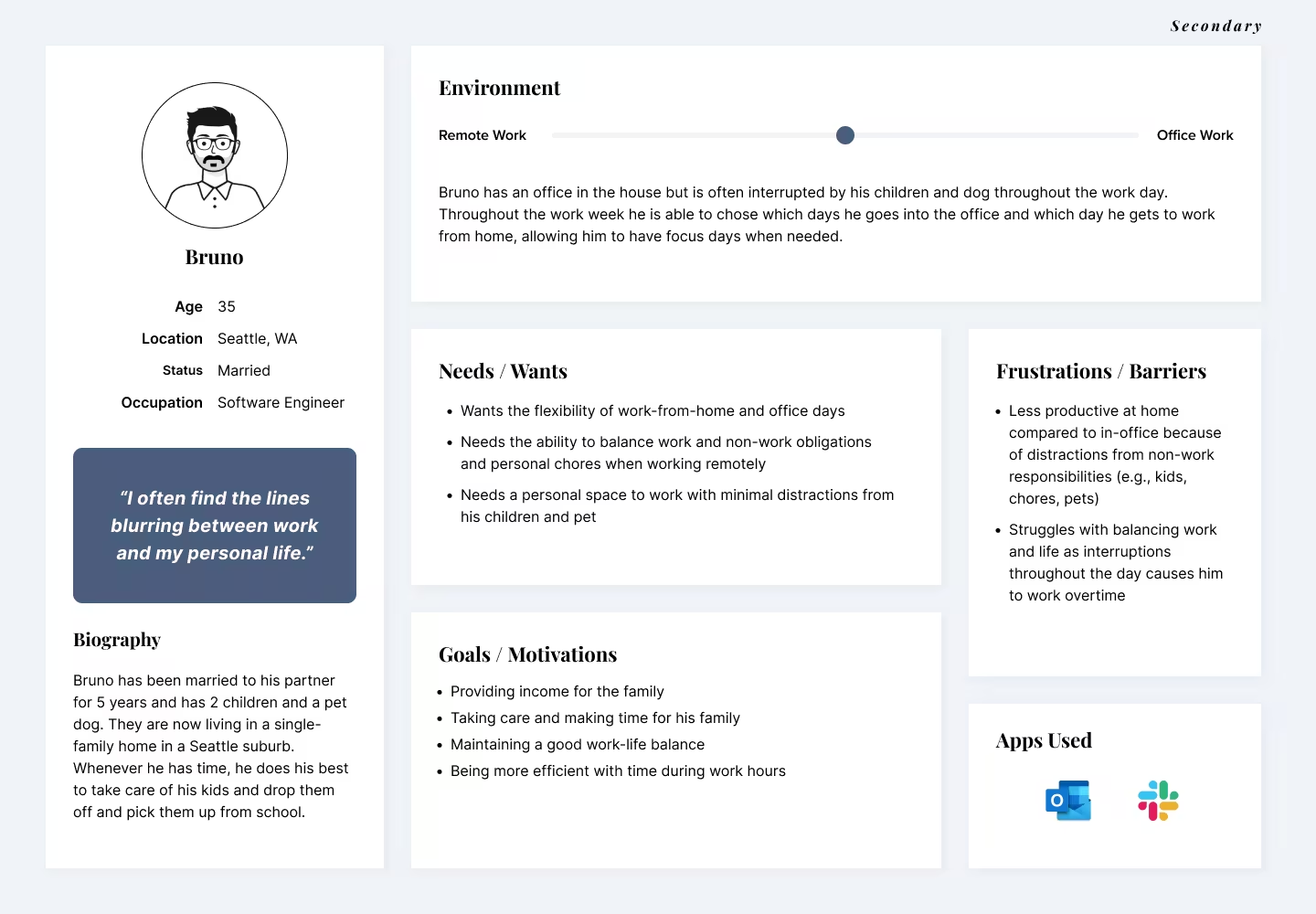
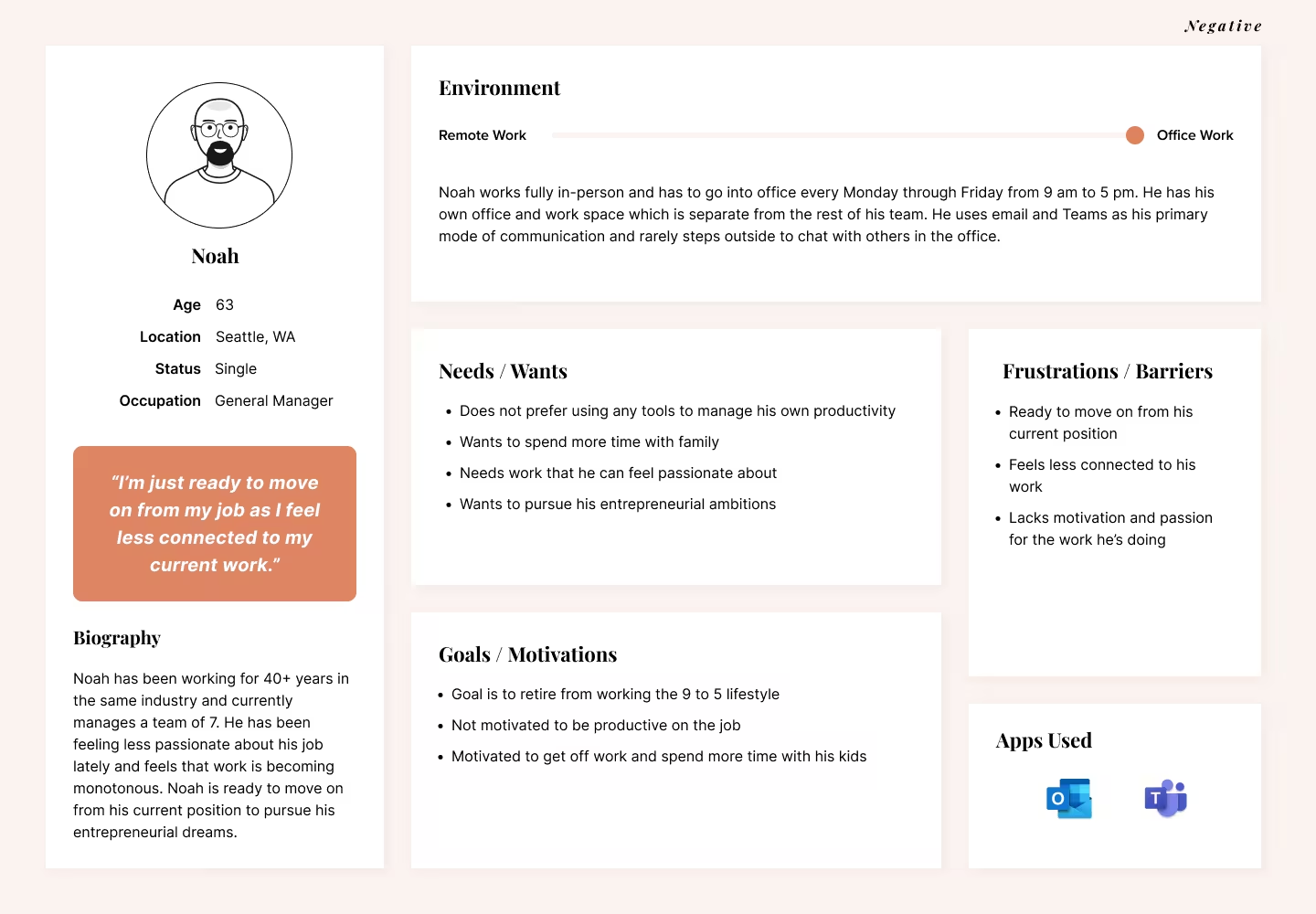
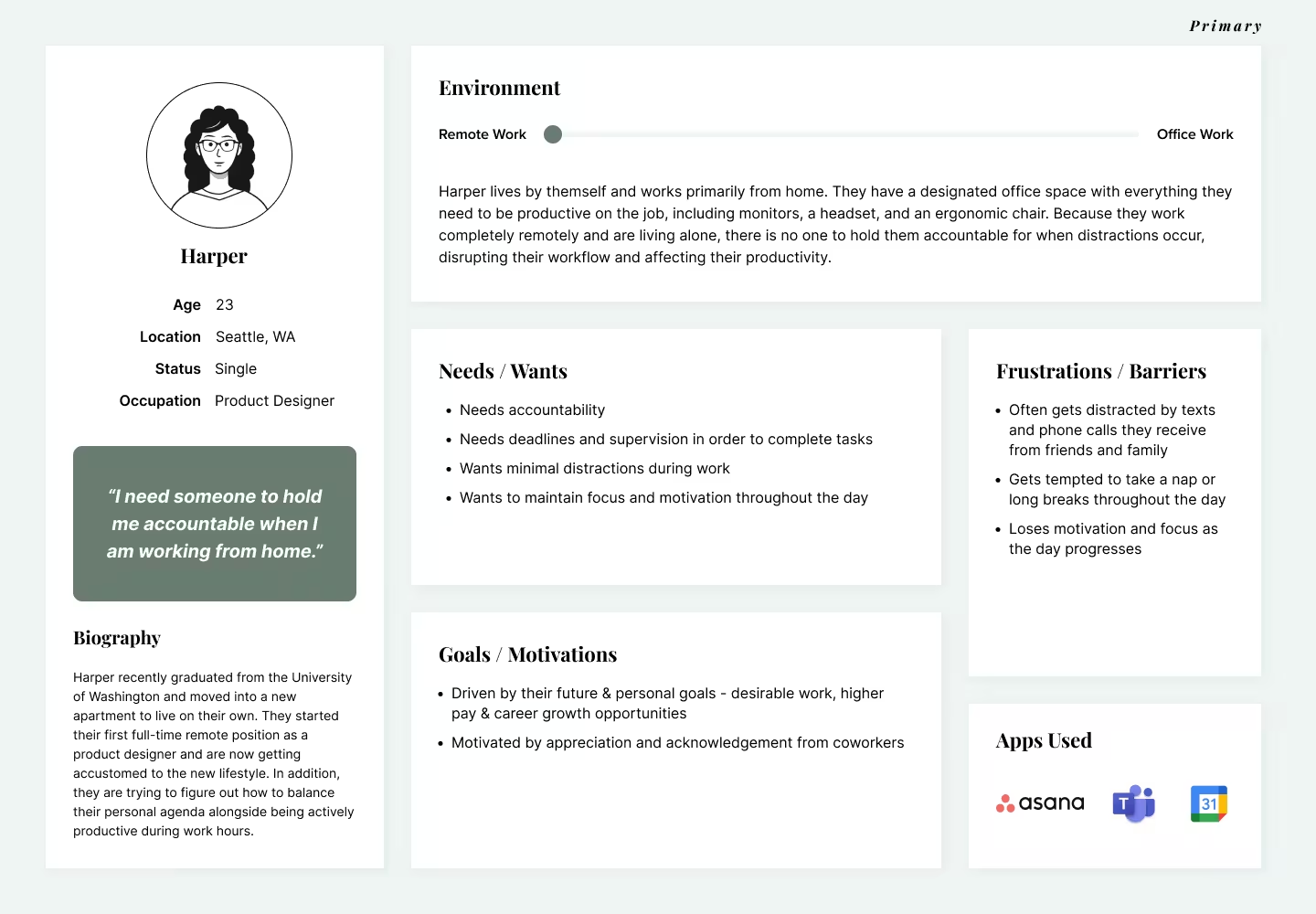
Using our findings we built three personas for our key user segments — a primary, a secondary and a negative persona — and focused on the primary persona, Harper, to narrow the scope of the project.

I need someone to hold me accountable when I am working from home.”

Harper · primary persona
Fit profile · P-01 · HarperPrimary
Primary persona board for Harper, 23, a product designer in Seattle who works fully remotely, with needs, goals, frustrations and apps used
Harper, primary. Fully remote, living alone, with no one to hold them accountable — so distractions derail the day and motivation drops as it goes on.
Fit profile · P-02Secondary
Secondary persona board for Bruno, 35, a software engineer who splits his week between home and the office
Bruno, secondary. Chooses which days he works from home, and is interrupted by his children and dog when he does.
Fit profile · P-03Negative
Negative persona board for Noah, 63, a general manager who works in the office five days a week
Noah, negative. In the office Monday to Friday and not interested in tools for managing his own productivity.
05Parts bin
Station 05 · Parts bin

Ideation

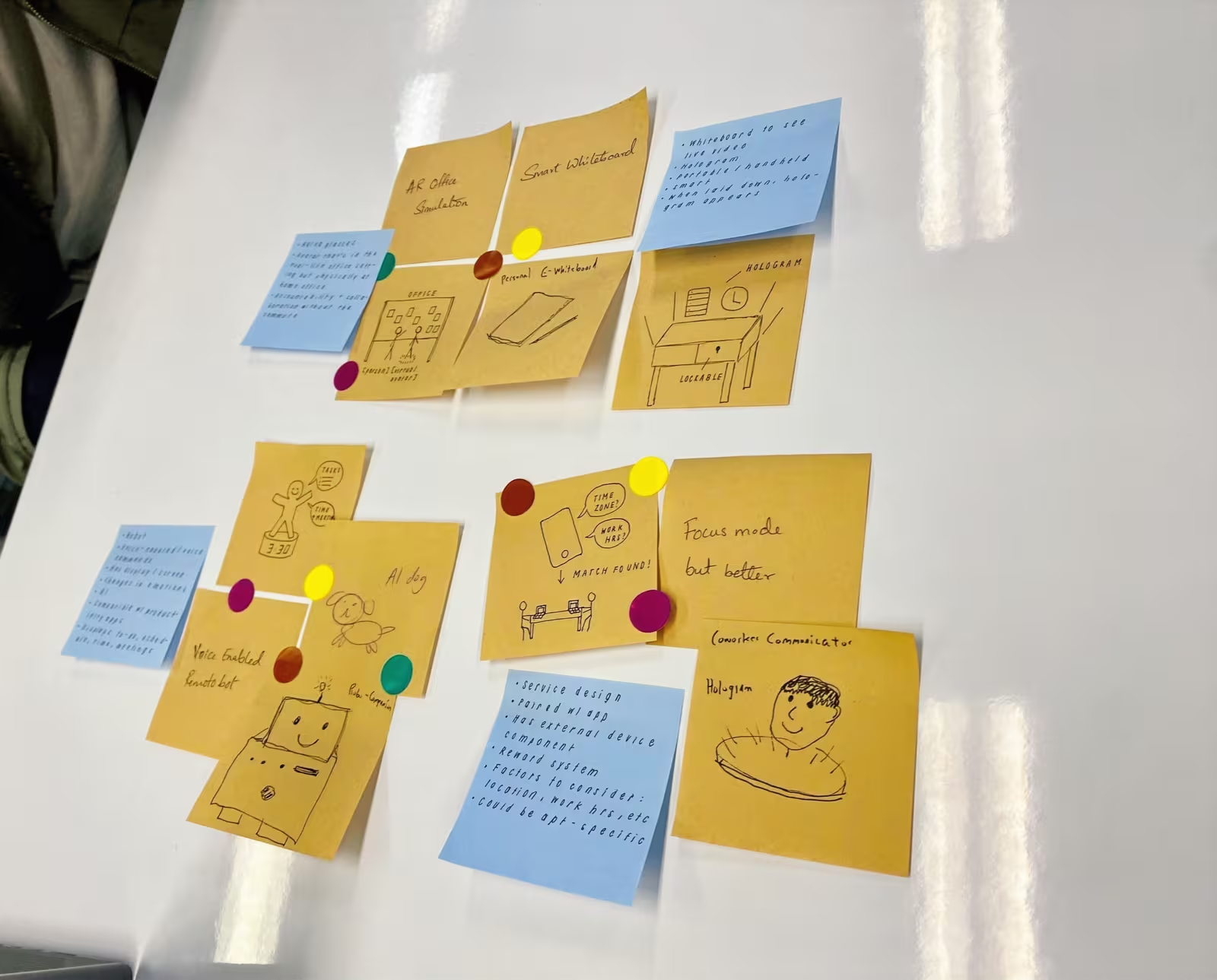
We ran a brainstorming session to sketch design ideas for the problems Harper runs into during the workday: a need for accountability, minimising external distractions, and maintaining focus throughout the day.

Yellow and blue sticky notes on a whiteboard, each with a hand-drawn concept sketch and coloured dot votes

Sketches from the brainstorm, with dot votes on the ideas worth taking further.

Ideas we discussed

Problem 01Accountability

Without the traditional office environment and colleagues to keep them on track, remote workers can find it hard to stay motivated and accountable for their work.

  • Tools that track time spent on tasks
  • Specific goals and deadlines
  • Accountability partners or groups
Problem 02Minimising external distractions

Working from home, it is easy to be pulled away by household tasks, social media or other non-work activities.

  • Noise-cancelling headphones
  • Set work hours and boundaries
  • A designated, distraction-free workspace
Problem 03Maintaining focus

Without the social cues and accountability of an office, motivation and focus are hard to hold all day.

  • Regular breaks
  • Specific goals for each work session
  • The Pomodoro technique, to avoid burnout

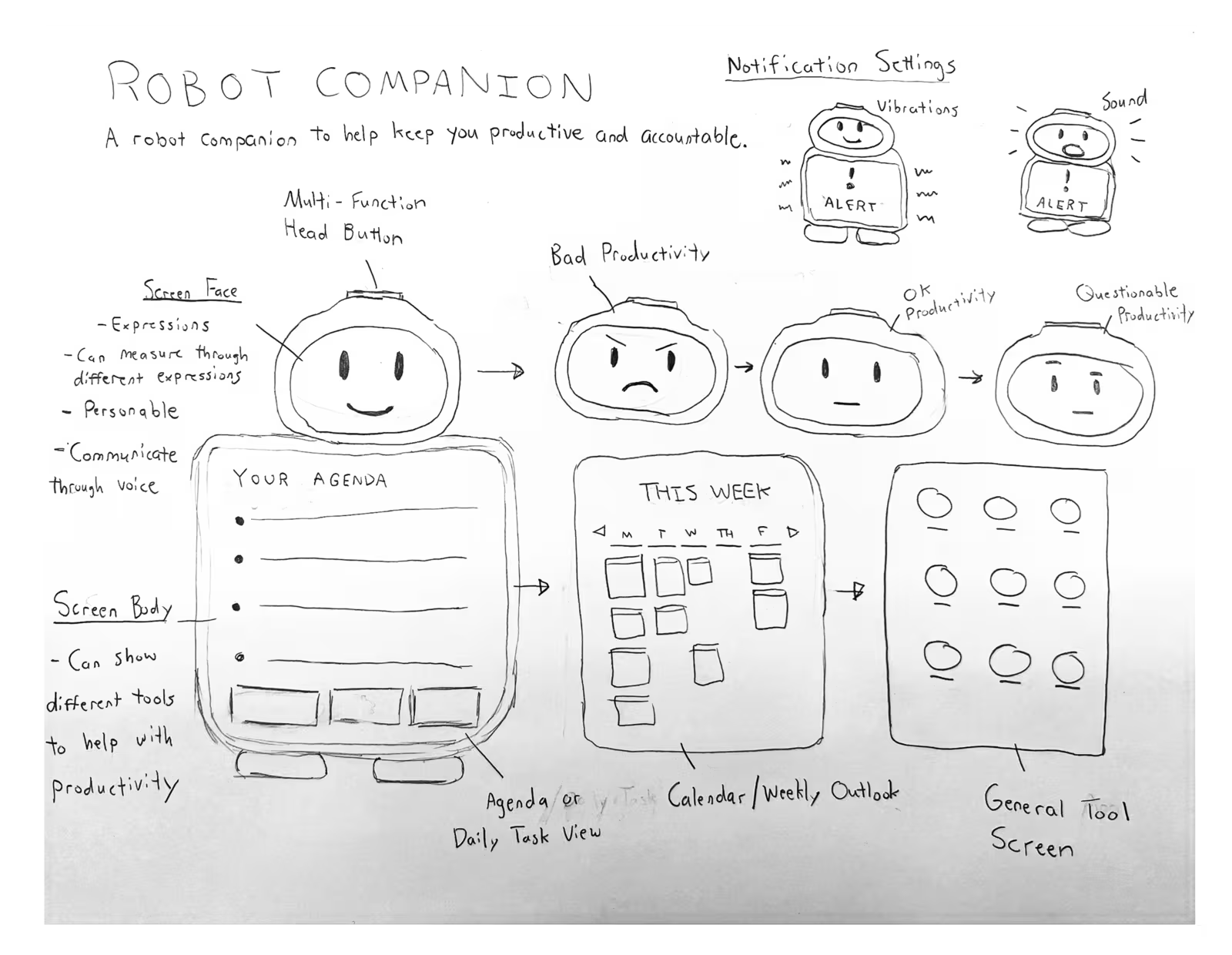
We moved forward with the physical robot companion because it addresses all three problems at once, with the added benefit of making the whole work day more enjoyable.

Part selected for assemblyHand-drawn sketch titled “Robot Companion”, showing a screen face with four productivity expressions, a screen body cycling through agenda, weekly calendar and tool screens, and vibration and sound notification settings

The concept sketch: a screen face that shows how the day is going, and a screen body that switches between the daily agenda, the weekly outlook and a general tool screen.

06Wiring
Station 06 · Wiring

Key user flows

We identified three key user flows for the robot companion.

Wire A · Flow 01

Integrating productivity tools

Tools like Outlook and reminders connect to the robot, so it can help manage work schedules and deadlines, flag what is coming up, and lay out the day in a way that optimises productivity.

OutlookReminders→Robot
Wire B · Flow 02

Voice interactions

Voice commands make the robot easier and more natural to engage with — set a timer, schedule a meeting, or play music to help stay focused.

Voice→TimerMeetingMusic
Wire C · Flow 03

Accountability when taking breaks

A Pomodoro timer reminds users when to take a break and when to focus, and encourages them to do some stretches.

Pomodoro→BreakFocusStretch
07Assembly
Station 07 · Assembly bay

Prototyping

We built a mid-fidelity prototype of the robot companion around those three flows.

Bay 07-A · Integration
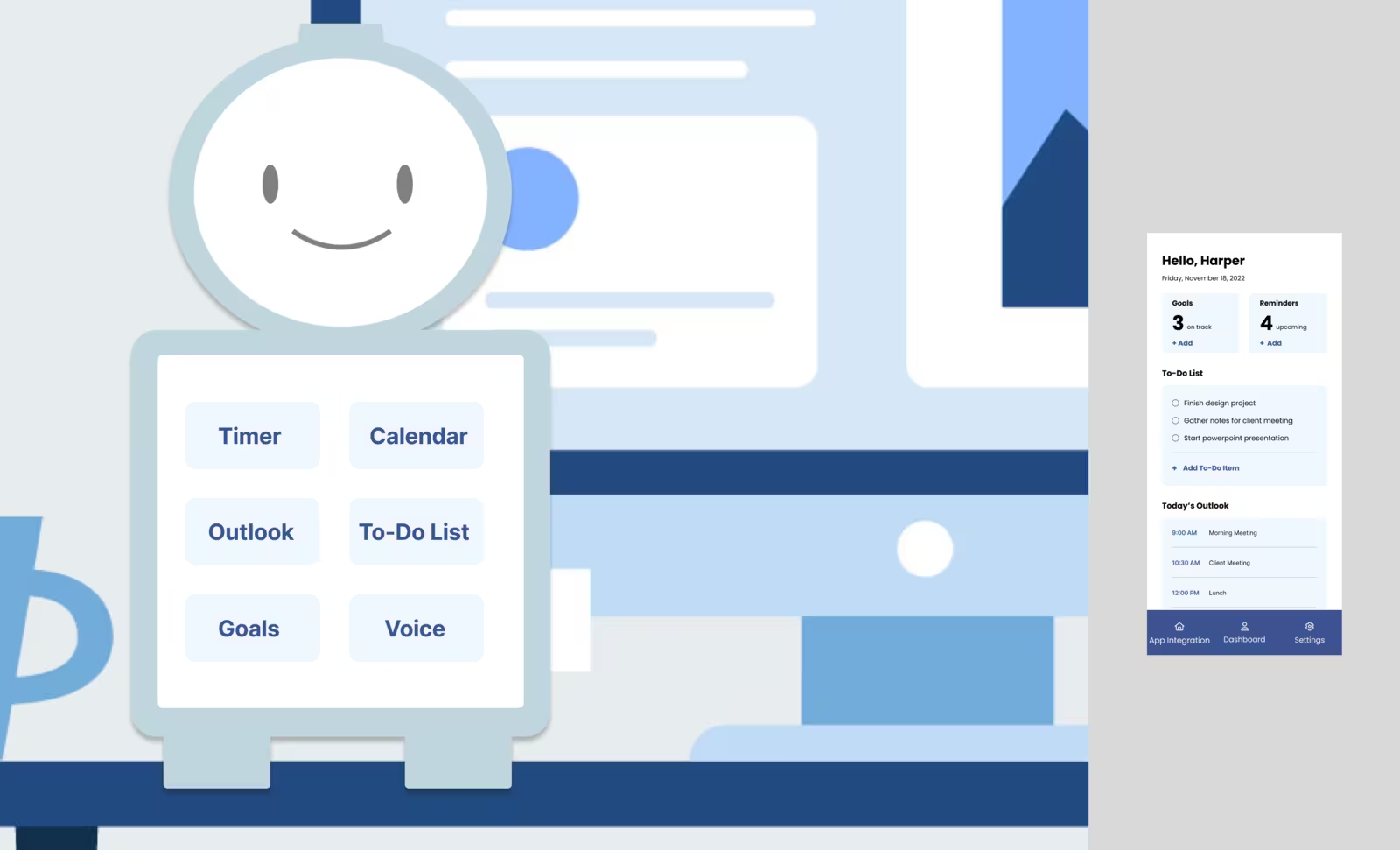
Mid-fidelity robot screen showing a quick-access grid of Timer, Calendar, Outlook, To-Do List, Goals and Voice, beside the phone app dashboard

Integration between phone app and robot. The same goals, reminders and to-do list in both places.

Bay 07-B · Voice
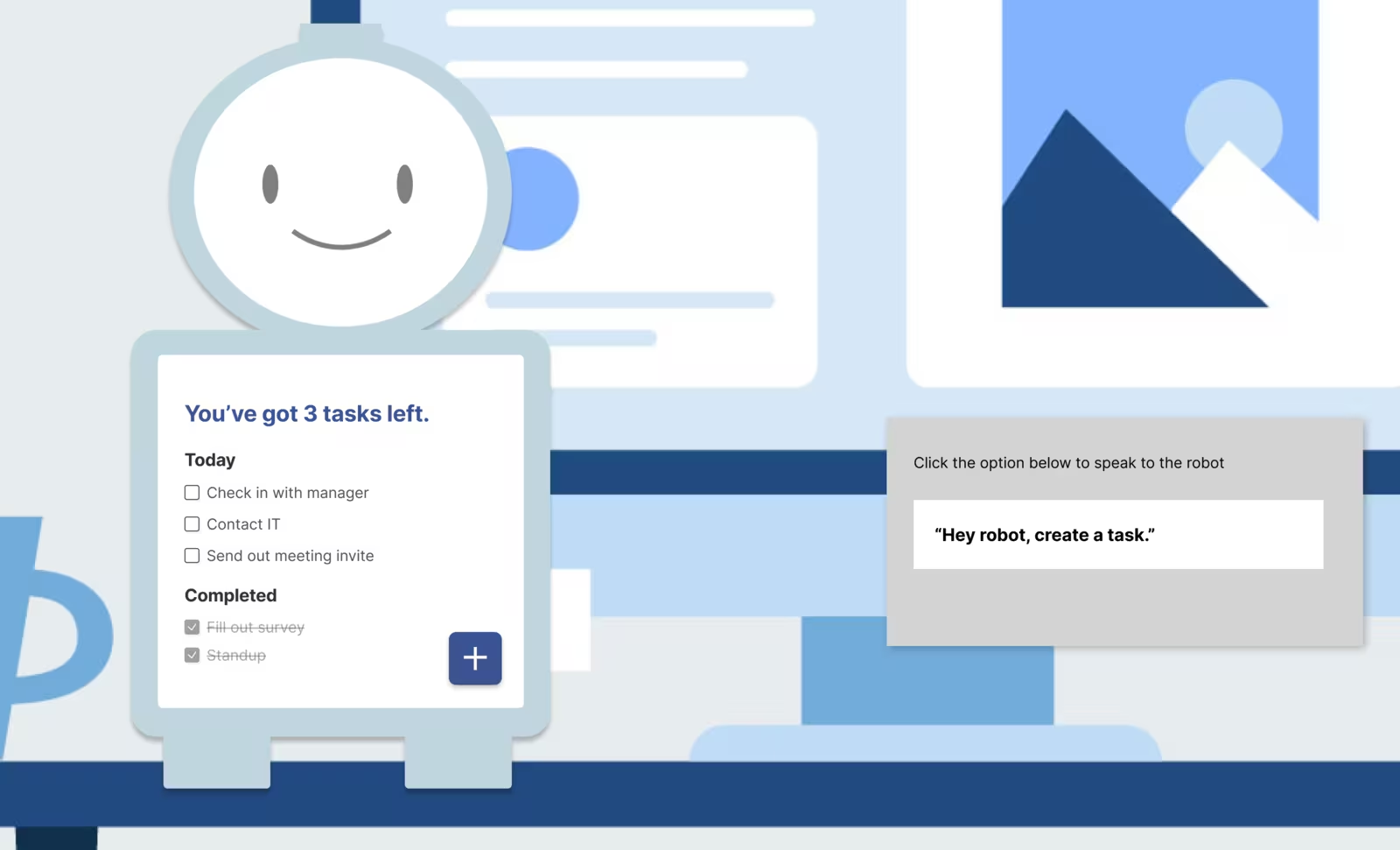
Mid-fidelity robot screen listing today's tasks, beside a panel reading “Hey robot, create a task.”

Voice interaction with the robot. Speaking to the robot to add a task, without touching the screen.

Bay 07-C · Reminders
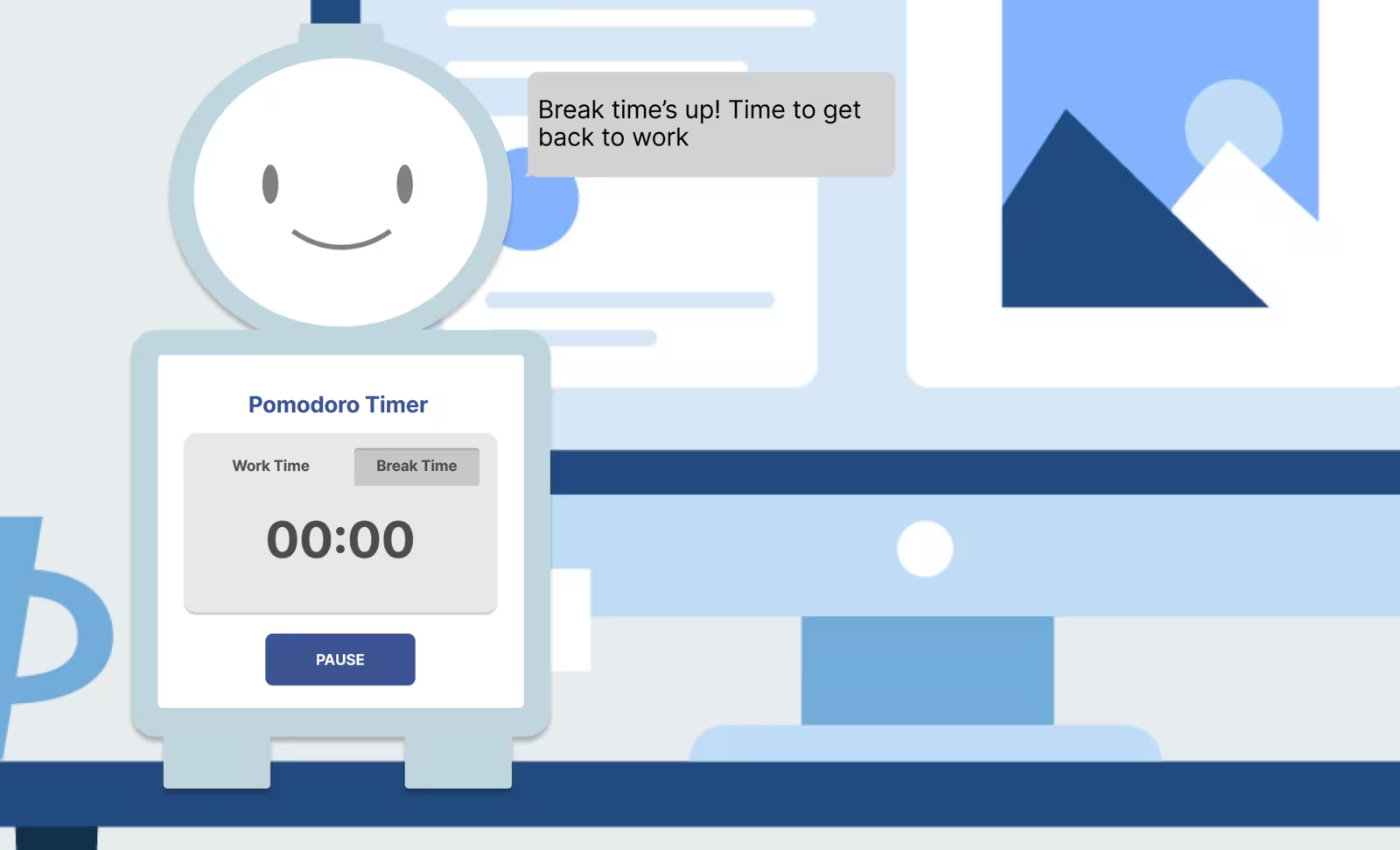
Mid-fidelity robot screen with a Pomodoro timer at 00:00 and a speech bubble reading “Break time's up! Time to get back to work”

Reminders that alert the user to their agenda. The robot speaks up when break time is over.

08Blueprints
Station 08 · Blueprints

Design specifications

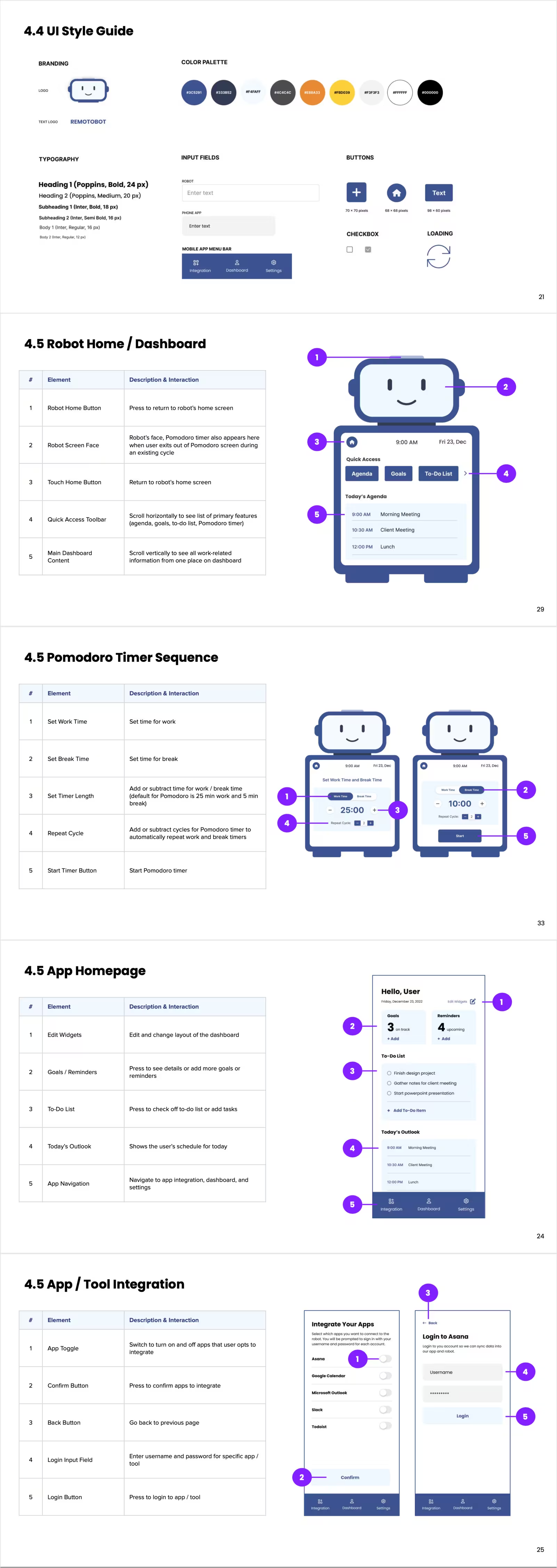
We specified the physical design, the technology for integrating productivity tools, and the accountability system, so the build would meet the needs of remote workers.

Drawing 08 · Design specification5 pages · scroll inside the frame
Five specification pages: the UI style guide, and annotated element tables for the robot home dashboard, the Pomodoro timer sequence, the app homepage and app/tool integration
Project
Remotobot
Course
UW HCDE 518
Pages
5
Issued
Sept – Dec 2022

The UI style guide and the annotated specs for the robot dashboard, Pomodoro timer, app homepage and tool integration.

09Quality
Station 09 · Quality control

Testing & iteration

We took the prototype to five participants and asked them to complete a set of tasks, to find the usability issues.

QA checklist · Station 09Usability test tasksParticipants · 5  /  Tasks · 4
  1. Log in and sync.You already have an account with the robot — log in and sync your Google Calendar information with it.
  2. Add a task by voice.Add a task called “prepare presentation” for today using the robot's voice UI capability.
  3. Start a Pomodoro.Start a timer on the default settings of 25 minutes work time and 5 minutes break time.
  4. Create a goal.Create a goal called “complete professional certificate” and check that it has been added.

What we would change next

The findings gave us four recommendations to follow in the next iteration.

Rework
Ticket R-01

Improve visual design

Maximise screen real estate and place the most important information upfront.

Next iteration
Rework
Ticket R-02

Allow for customisation

Give users options to customise — UI elements, and adding time and priority to items.

Next iteration
Rework
Ticket R-03

Improve accessibility

Make text and button sizes larger and easier to read.

Next iteration
Rework
Ticket R-04

Provide clear navigation

Put a back button on every page and support redo / undo.

Next iteration
10Test drive
Station 10 · Test drive

Video walkthrough

A short walkthrough of Remotobot and the prototype.

Test-drive monitor · RemotobotPlayback
0:00
11Screen install
Station 11 · Screen install

Physical robot UI

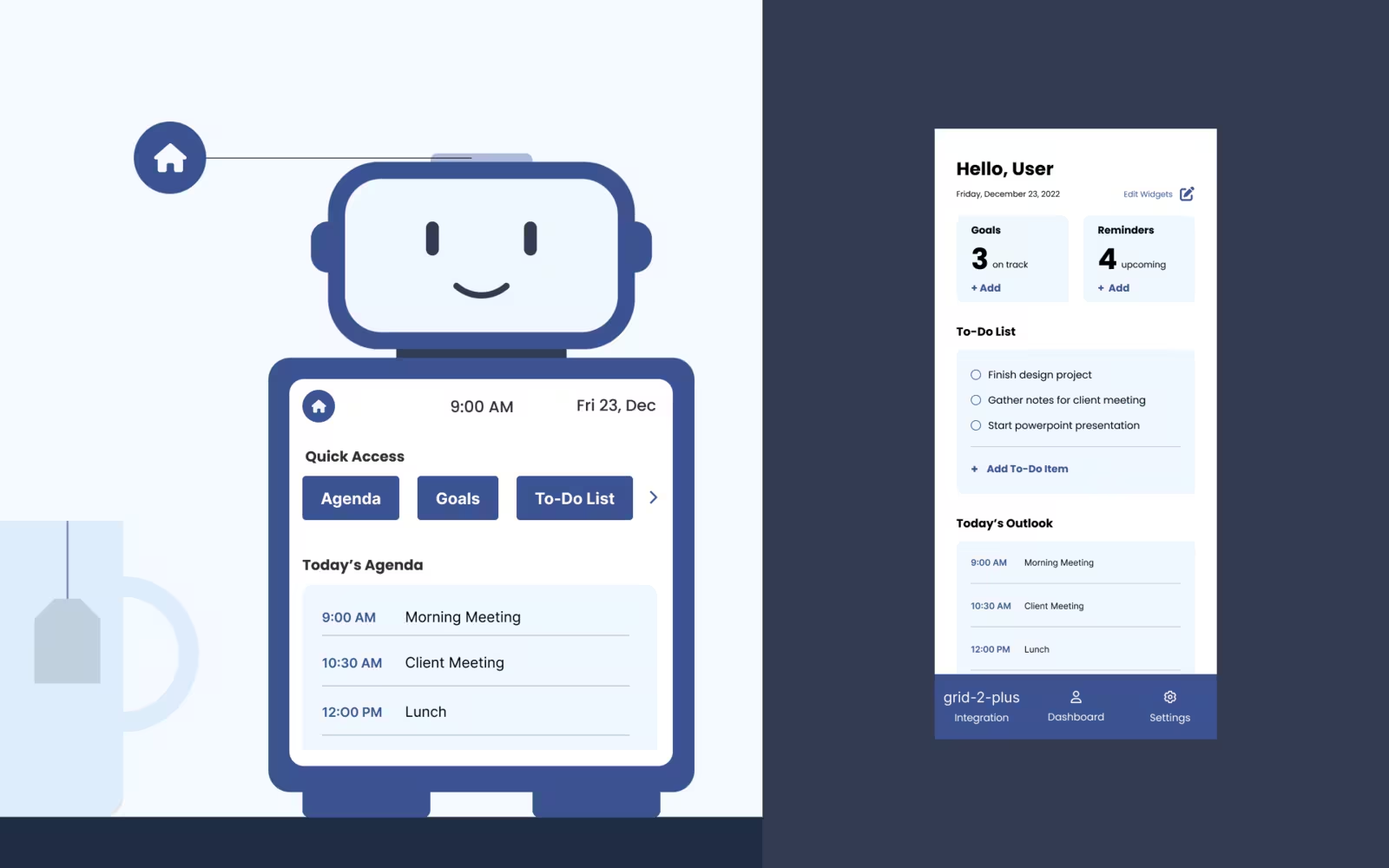
The final interface: the robot's screen body, and the phone app that keeps the same information in your pocket.

Syncing appsComplete!
AgendaGoalsTo-do listRemindersPomodoro
Screen body + phone appThe robot's quick-access dashboard showing today's agenda, beside the phone app's “Hello, User” dashboard on a navy background

The robot dashboard and the phone app side by side — the same agenda, goals and to-do list in both.

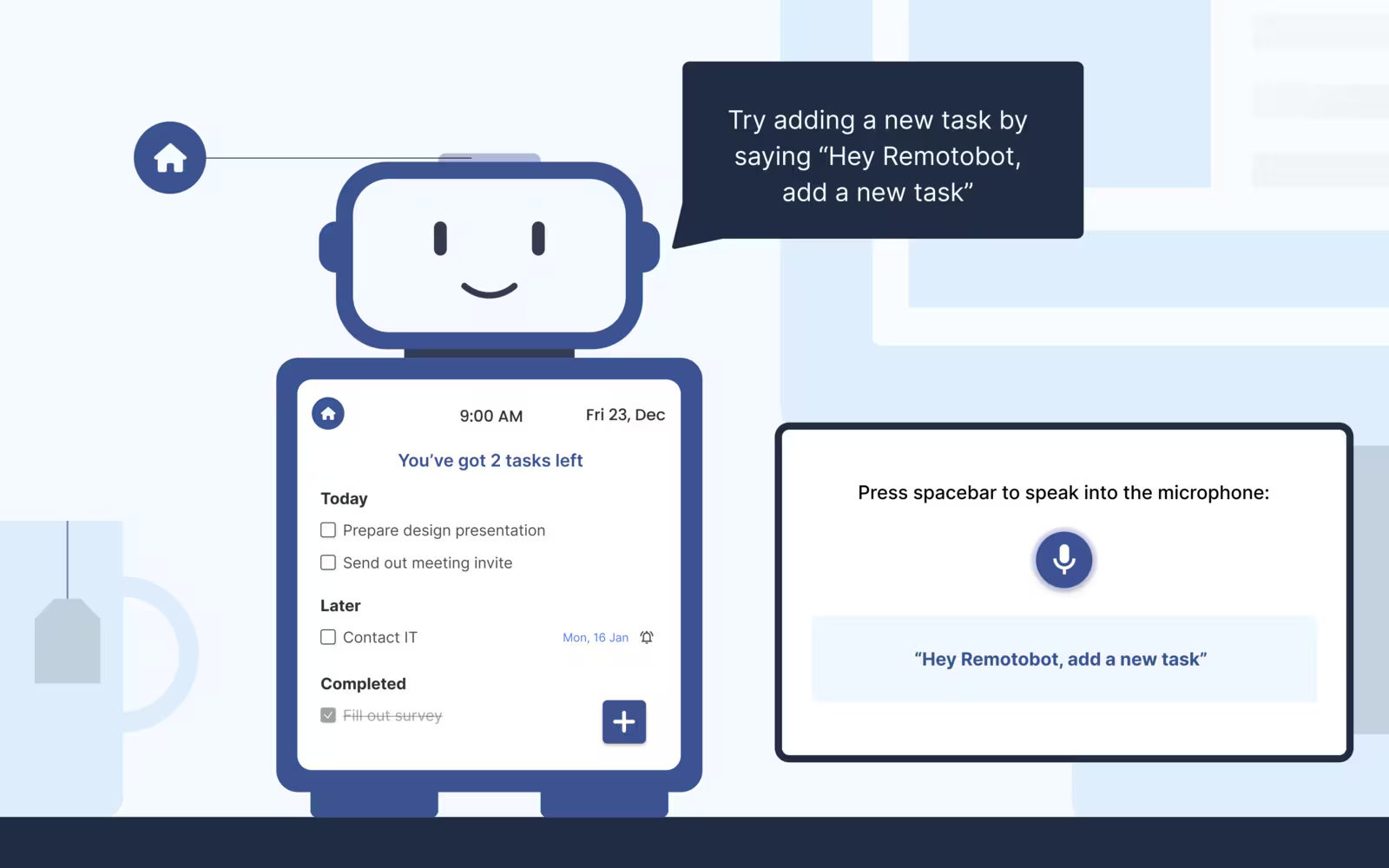
VoiceRobot screen with a speech bubble prompting “Try adding a new task by saying Hey Remotobot, add a new task”, beside a panel inviting the user to press the spacebar to speak
Adding a task by voice, with the robot prompting the phrase to say.
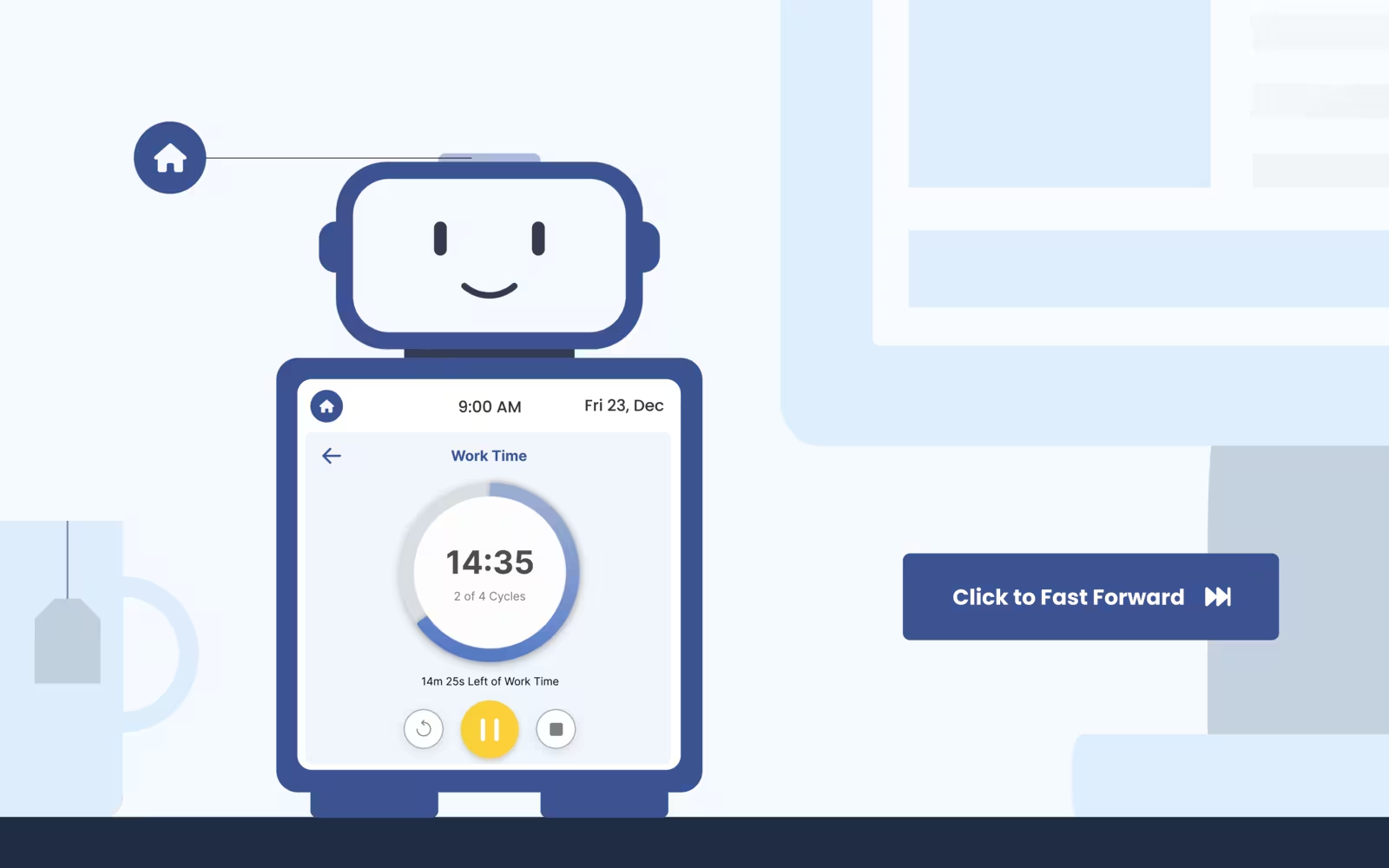
PomodoroRobot screen showing a Pomodoro work timer at 14:35, cycle 2 of 4, with pause and stop controls
A Pomodoro cycle running, with the cycle count and time left on screen.
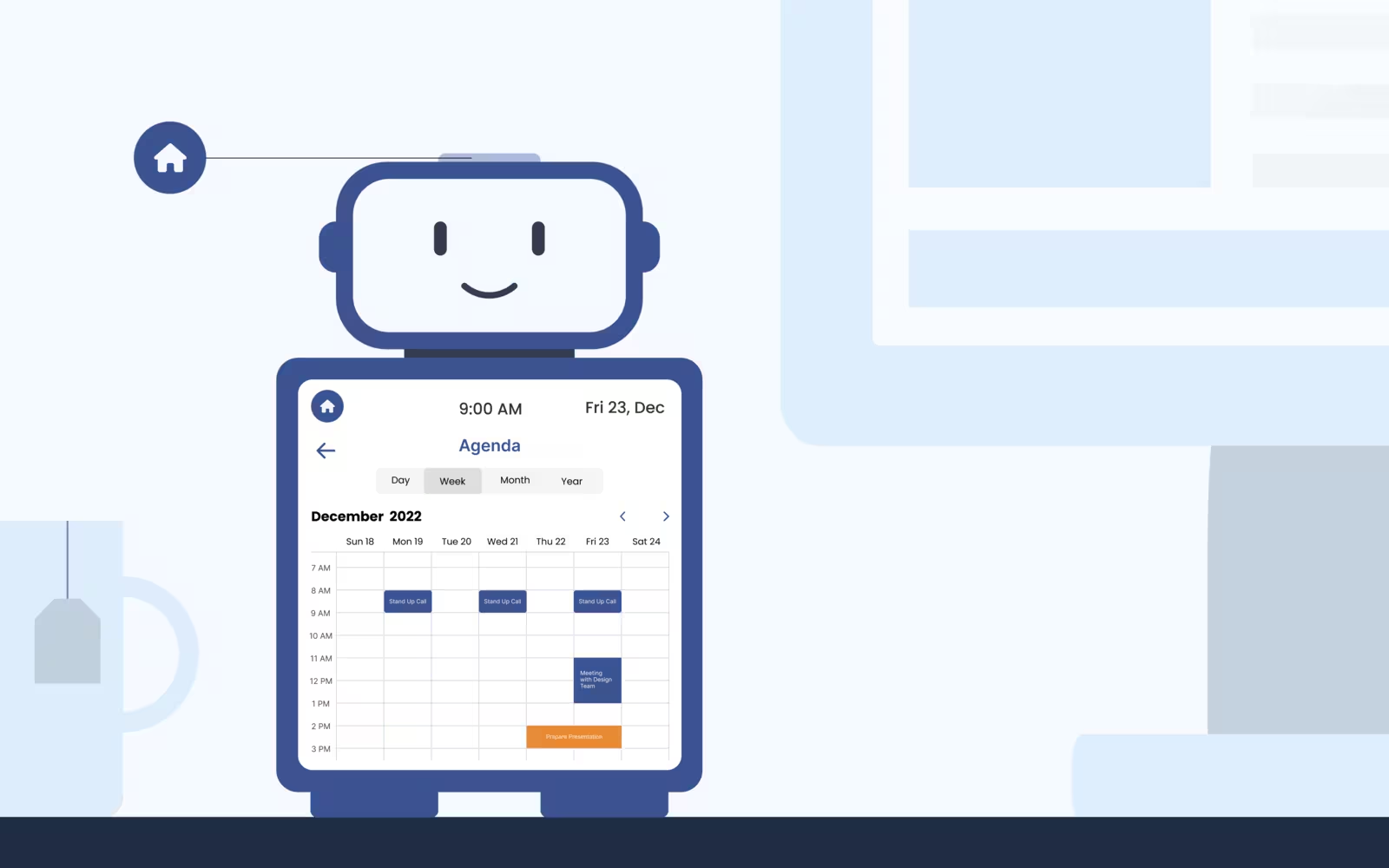
AgendaRobot screen showing a December 2022 week view of the agenda with meetings blocked out
The weekly agenda, synced from the user's calendar.
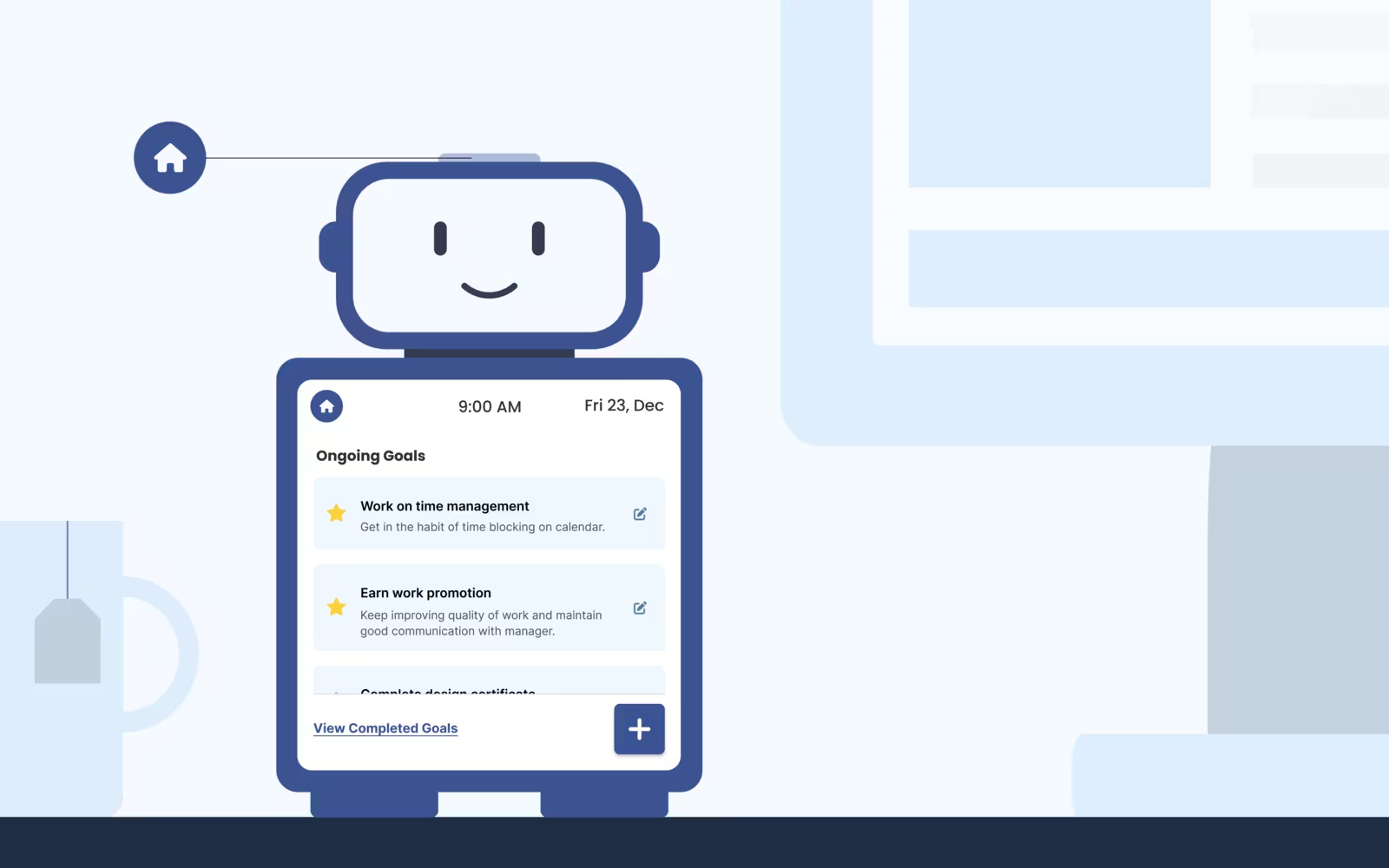
GoalsRobot screen listing ongoing goals such as “Work on time management” and “Earn work promotion”, with a link to completed goals
Ongoing goals, each with a note on how to make progress.

In motion

Phone app

Phone app

Choosing which apps to connect, signing in to each, then working through goals, reminders and the to-do list from the dashboard.

Robot

Robot

The quick access bar, the agenda, ongoing goals, and a Pomodoro cycle running on the robot's screen body.

12Upgrades
Station 12 · Upgrades for the next model

Next steps

+Upgrade 01

Add gamification.

Badges for completing goals or to-do items.

+Upgrade 02

Connect people.

Let users link up with friends or coworkers through the robot, to keep each other accountable.

+Upgrade 03

Go further on personalisation.

Personalised notification sounds and customisable robot faces, to make interacting with the robot more enjoyable.

← All work
Open case